Add and edit media files
Adding your own media files is a great option to keep your Stories as branded as you want! Keep reading this article to learn how to do so!
Adding media files: pictures from Slidy
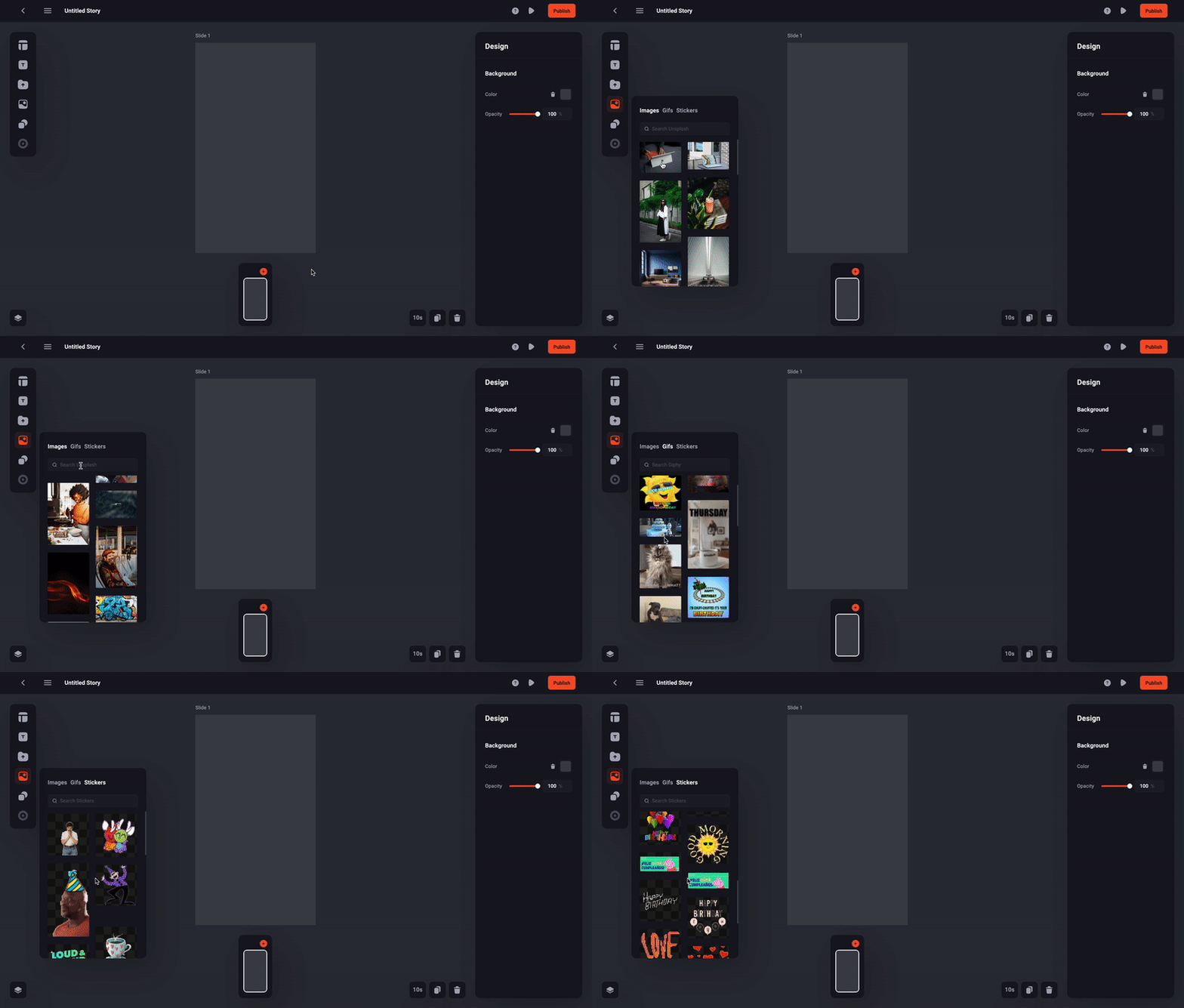
Follow the steps shown in this GIF to add your first media file:
- Click on the media icon to add your desired files
- Scroll through the options
- You can choose from millions of Images, Gifs and Stickers!
💡Tip: Work faster by using shortcuts for basic layer actions with CTRL or CMD and duplicate +D, copy +C, paste +V, cut +X or delete (backspace)
Adding media files: pictures and videos from your own desktop
- Click on the upload icon to add your desired files
- Click the add button in right top corner
- Upload your media
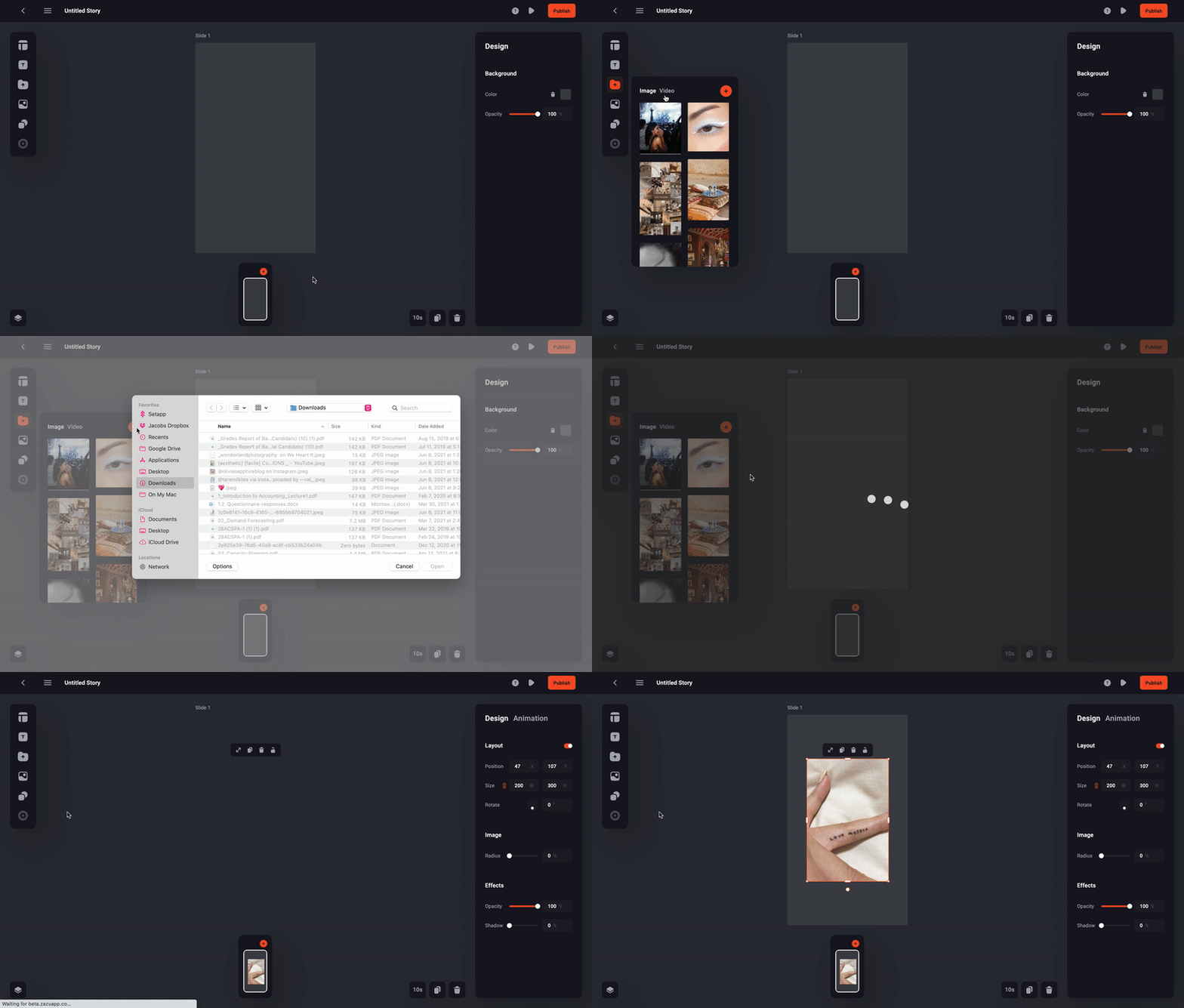
💡Tip: All files uploaded from your desktop are stored in the upload section for later usage
Replace your media files
You have the option to replace any image or video with a different media file. This also applies to templates and makes editing faster.
- Right-click on your media and select the option Replace
- Select an image or video form your own Slidy media library or a stock image
- The new media will be shown with the media ratio of the original
💡Tip: You can edit the ratio of the new image or video with a double- or right-click on the media. Chroping will be explained in the next part of the article
Crop your media files
- Right-click on your media and select the option Crop
- Adjust size accordingly
- Exit by tapping outside the media
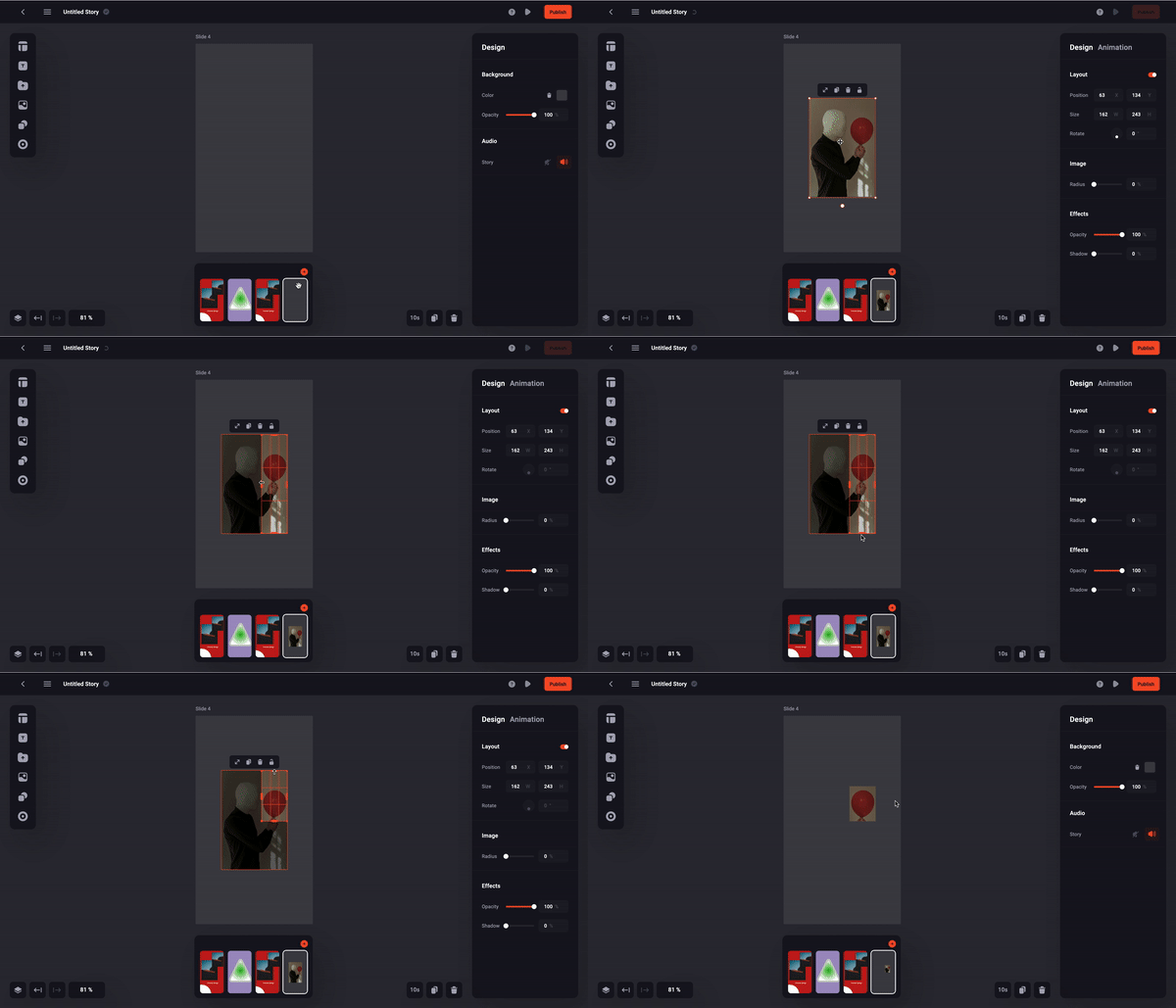
💡Tip: You can enable the crop-mode by double-clicking on the media
Multi-selecting elements
You can select multiple media elements at once for a faster and a smoother editing. All you need to do is:
- Select a media element
- Press Shift and hold
- Click on desired elements one by one
To deselect an element, click one more time on it.
Mute your Story
- You can easily mute the sound of your entire Story when editing using the sidebar tool under Audio.
Once the media files are successfully imported, you can use the them to build your own Story following the steps indicated in the related articles below.