Add and edit shapes
You can add different kinds of shapes in Slidy to be creative with your design. You can choose from a wide range of Shapes and Gradients and adjust them to your needs and style. Have a look at the basics below!
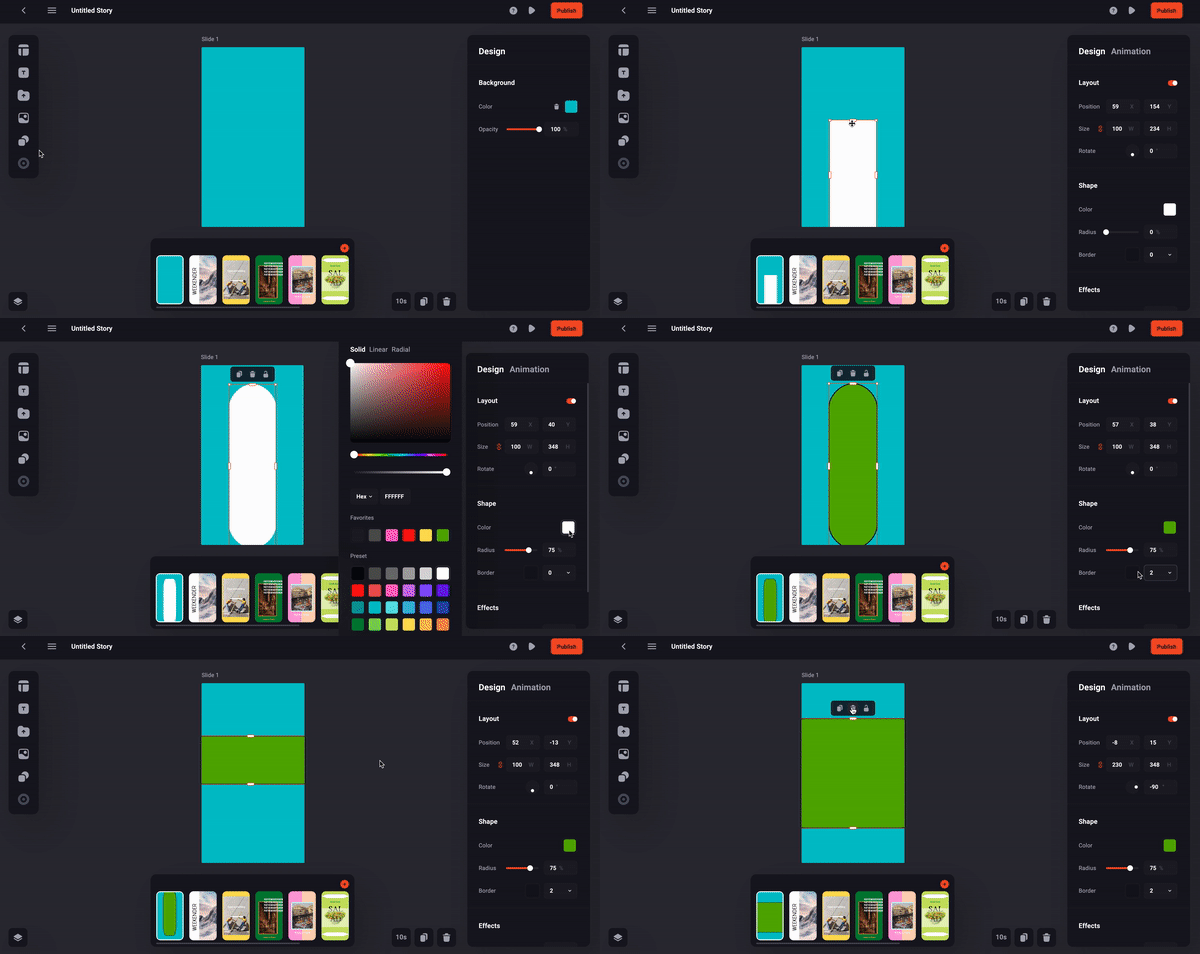
Here is a guide on how to use the shapes in Slidy:
Here is a guide on how to use the gradients in Slidy:
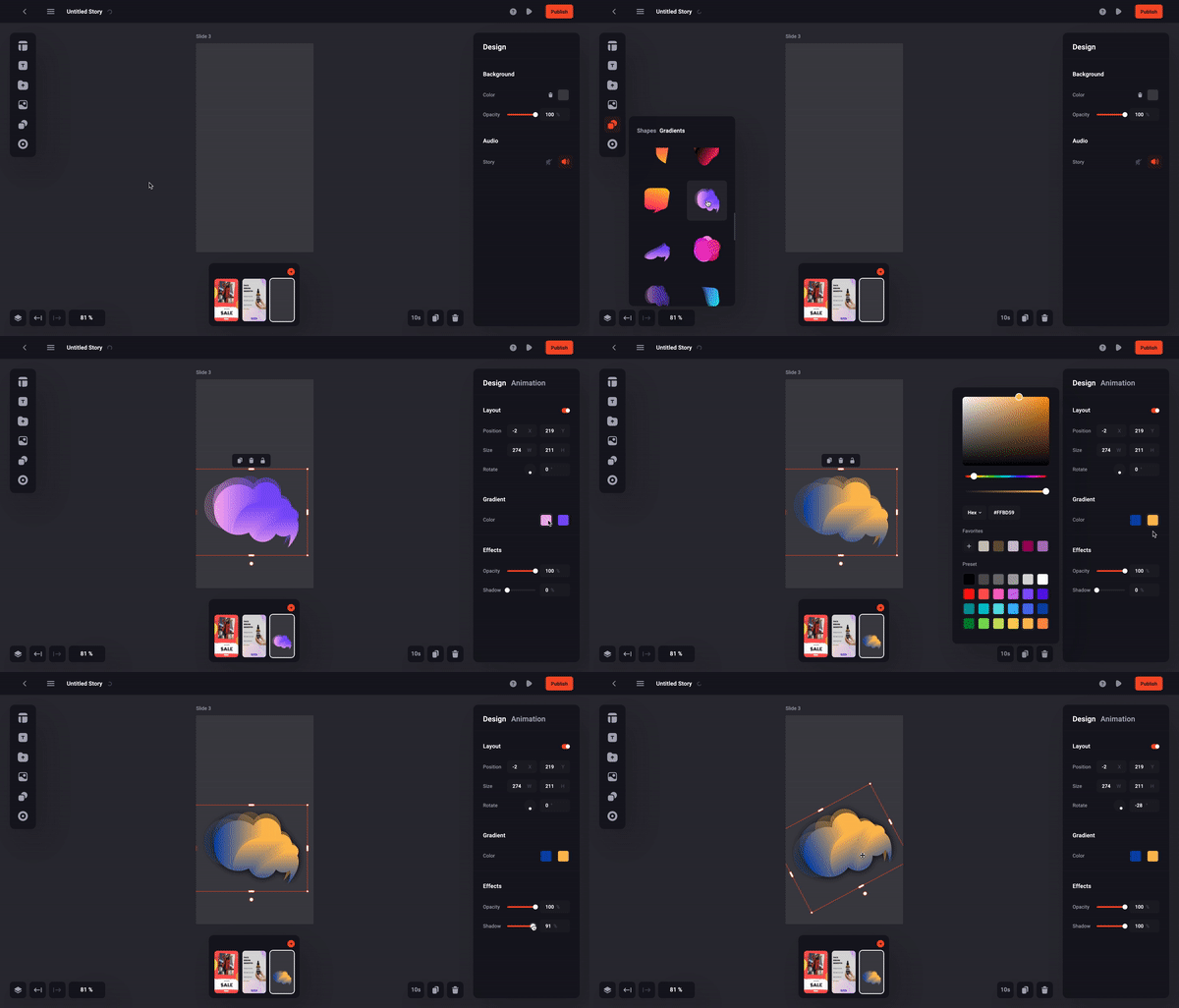
The GIFs show how simple it is to add shapes and gradients to a Story. It lies within your creativity how to integrate them best into your design. Find and adapt them to your own needs by changing different parameters like color, size, shape, shadows and more.
- Add shapes/gradients by clicking on the shape icon at the toolbar on the left
- Choose the type of shape you want to apply to your artboard
- Move and resize the shape by dragging it
- You can duplicate, delete and lock the shape with the action bar right above the object
More settings can be edited in the inspector sidebar on the right . You can change the colors, round edges, or add an animation .
💡Tip: Be fast and use shortcuts for basic layer actions with CTRT or CMD and duplicate +D, copy +C, paste +V, cut +X or delete (backspace)
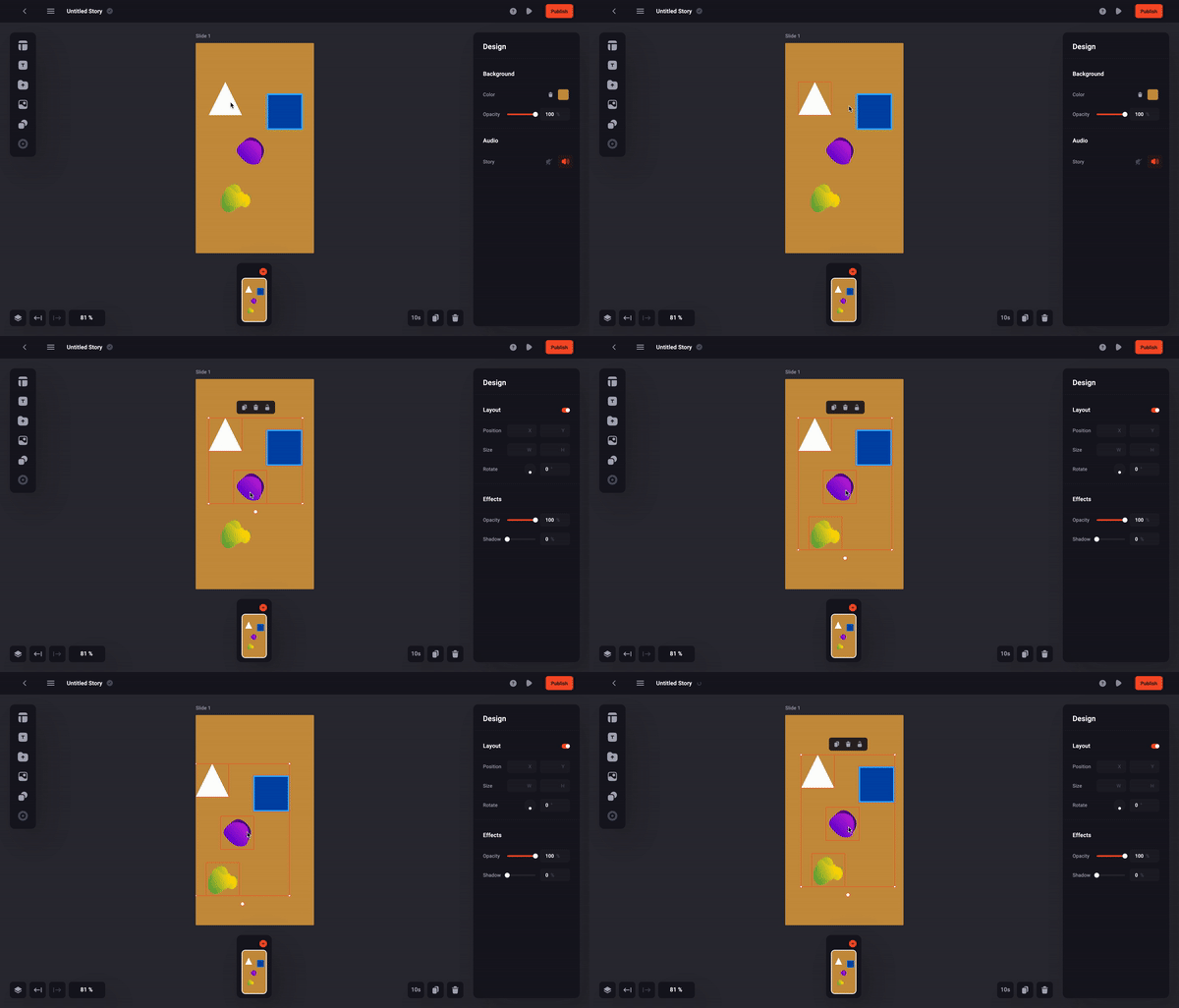
Selecting multiple shapes at once is also possible. Let this GIF guide you through:
- Select a shape element
- Press Shift and hold
- Click on all the desired elements to follow