Add and edit text
Text editing with Slidy is fast, easy, and highly customizable. Explore the possibilities and give your words a nice look!
Here is a guide on how to use text layers in Slidy:
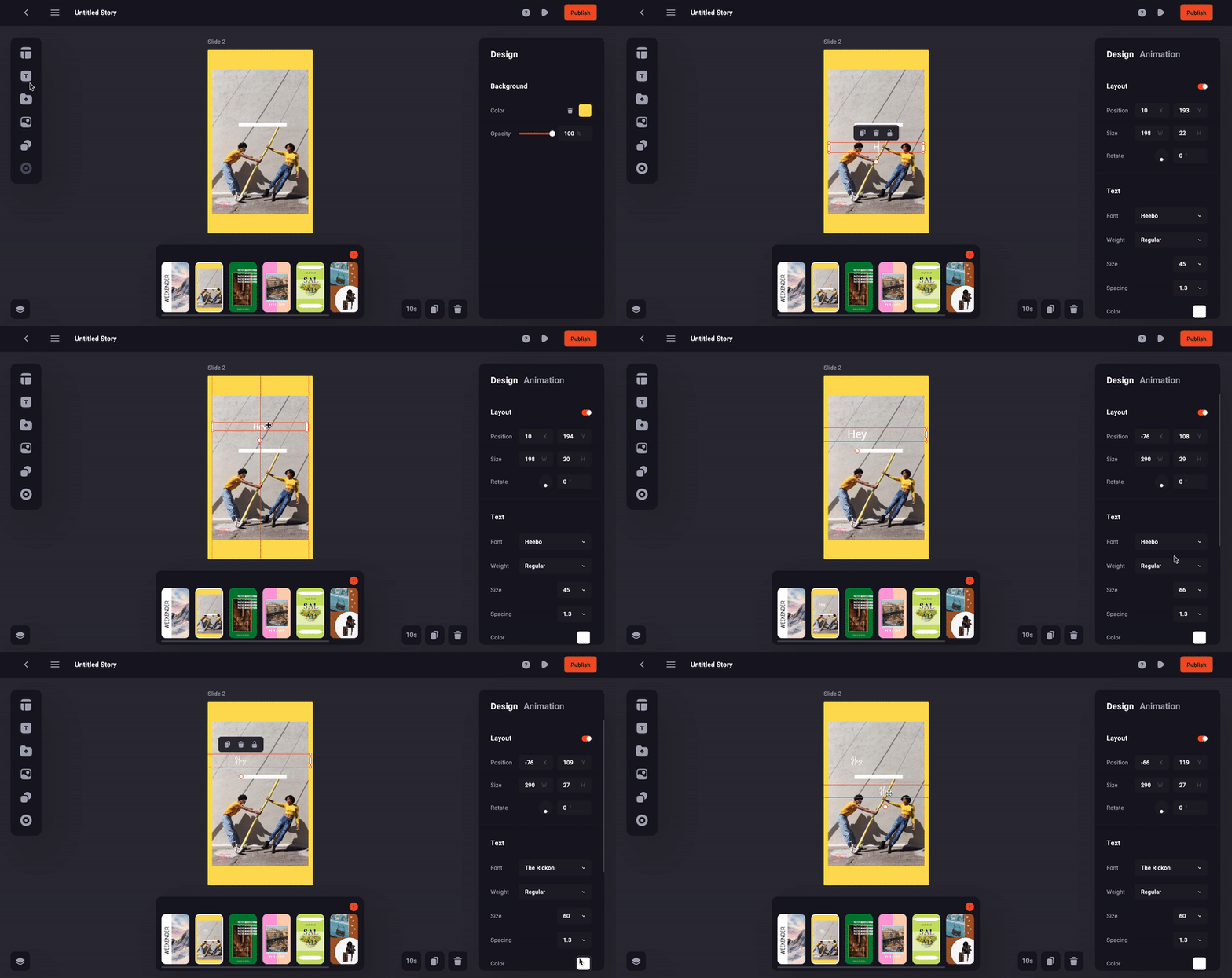
As you can see text editing is quite easy and probably what you are used to from working with design tools. Nevertheless this is how you can work with text in Slidy:
- Add text by clicking on the text icon in the toolbar on the left
- To type text simply double click into the text box
- Move and resize the text by dragging the text field
- You can duplicate, delete and lock the text with the bar right above the text field
More settings can be edited in the inspector sidebar on the right . You can change e.g. the font or add an animation .
💡Tip: Be fast and use shortcuts for basic layer actions with CTRT or CMD and duplicate +D, copy +C, paste +V, cut +X or delete (backspace)
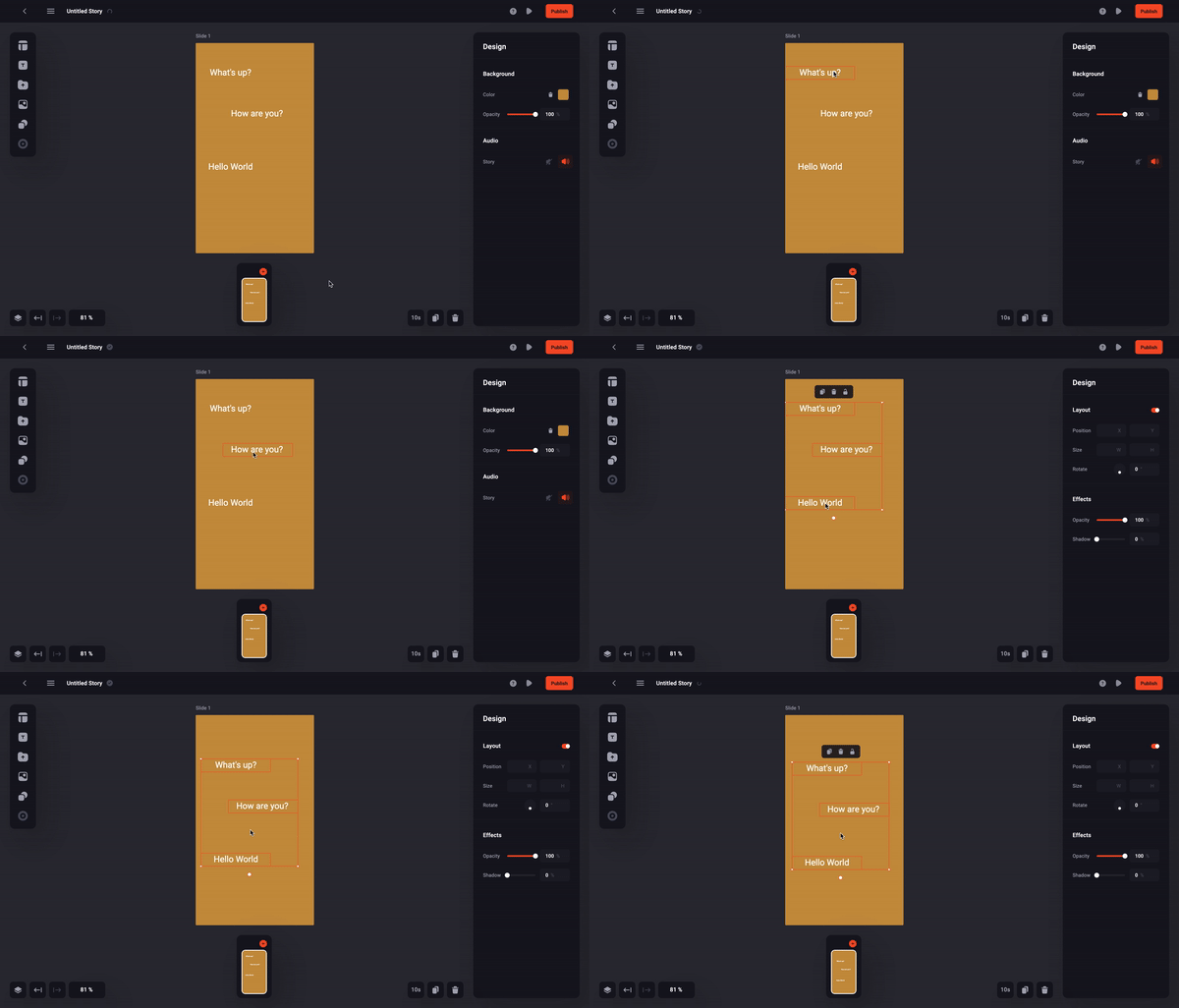
You can also multi-select multiple texts at once for a faster editing:
- Select a text
- Press Shift and hold
- Click on the desired text one by one