Invite Members
With the Teams feature, you can easily invite your colleagues to work and collaborate on the same set of slides. Simply follow the steps shown in this article.
Invite members from Dashboard
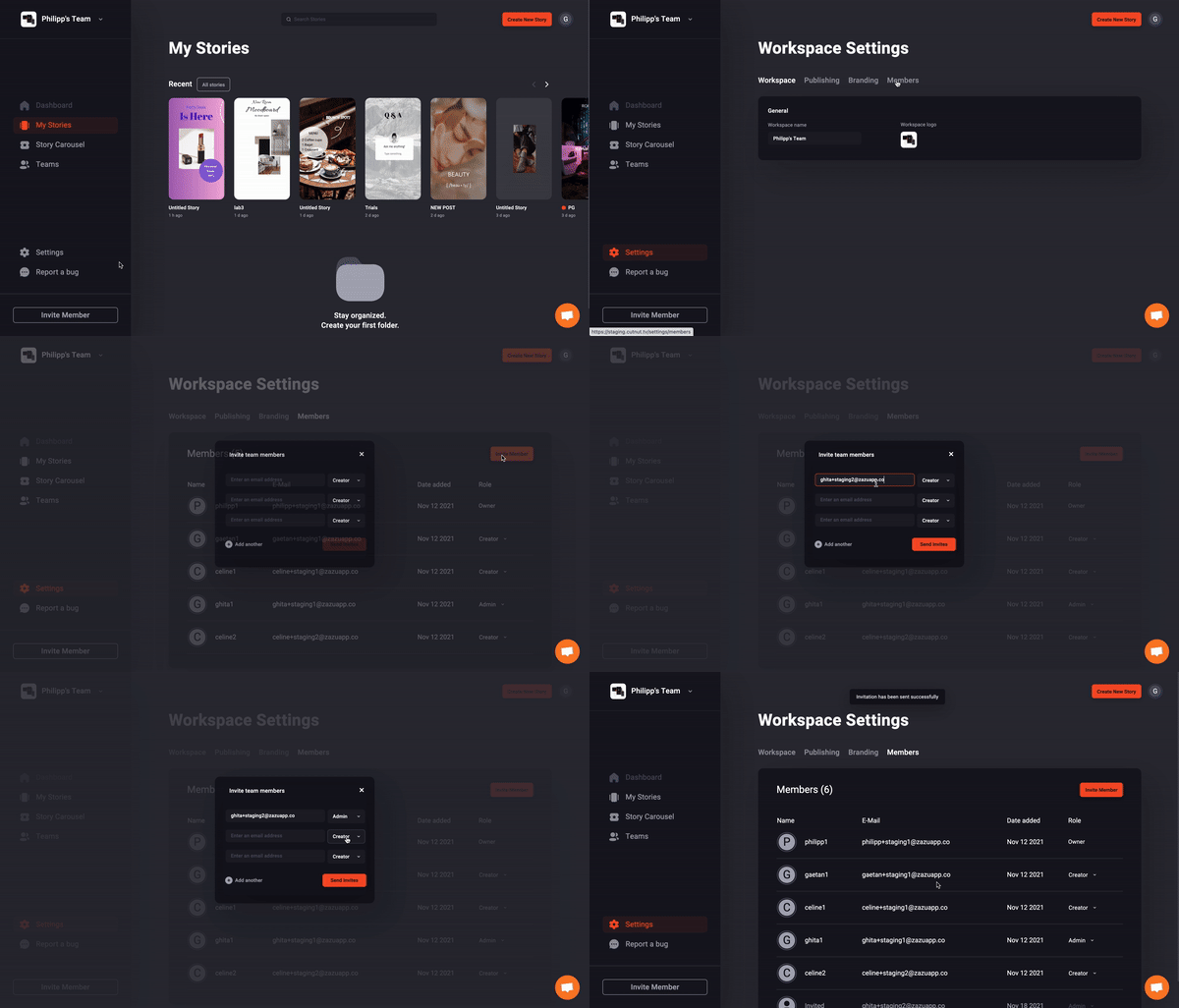
You can invite your colleagues to your Workspace by a few easy steps:
- Select Invite Member at the bottom left of your screen
- Input the member's email address
- Select the member's role
Admin role has almost the same freedom as the Owner , that includes inviting new members, removing them and adjusting Workspace settings. Creator role has more restrictions and can neither invite/remove members nor modify settings but can nonetheless see them.

💡Tip: More than 3 members can be invited at a time by adding more email fields
Invite members from Settings
Members can also be invited from Workspace Settings (shown below):
- Under Settings, click on Members
- Select Invite Member
- Input the member's email address
- Select the member's role
Each user owns their personal Workspace where they can invite other members with whom they wish to collaborate. Therefore, a Story that is created and moved into the Teams section is shared with all Workspace members and for everyone to work on.
Meanwhile, every Story Carousel created within a workspace is shared with other members.
💡Tip: You can always change the role of a member from Creator to Admin or vice versa under settings, only if you're either Admin or Owner
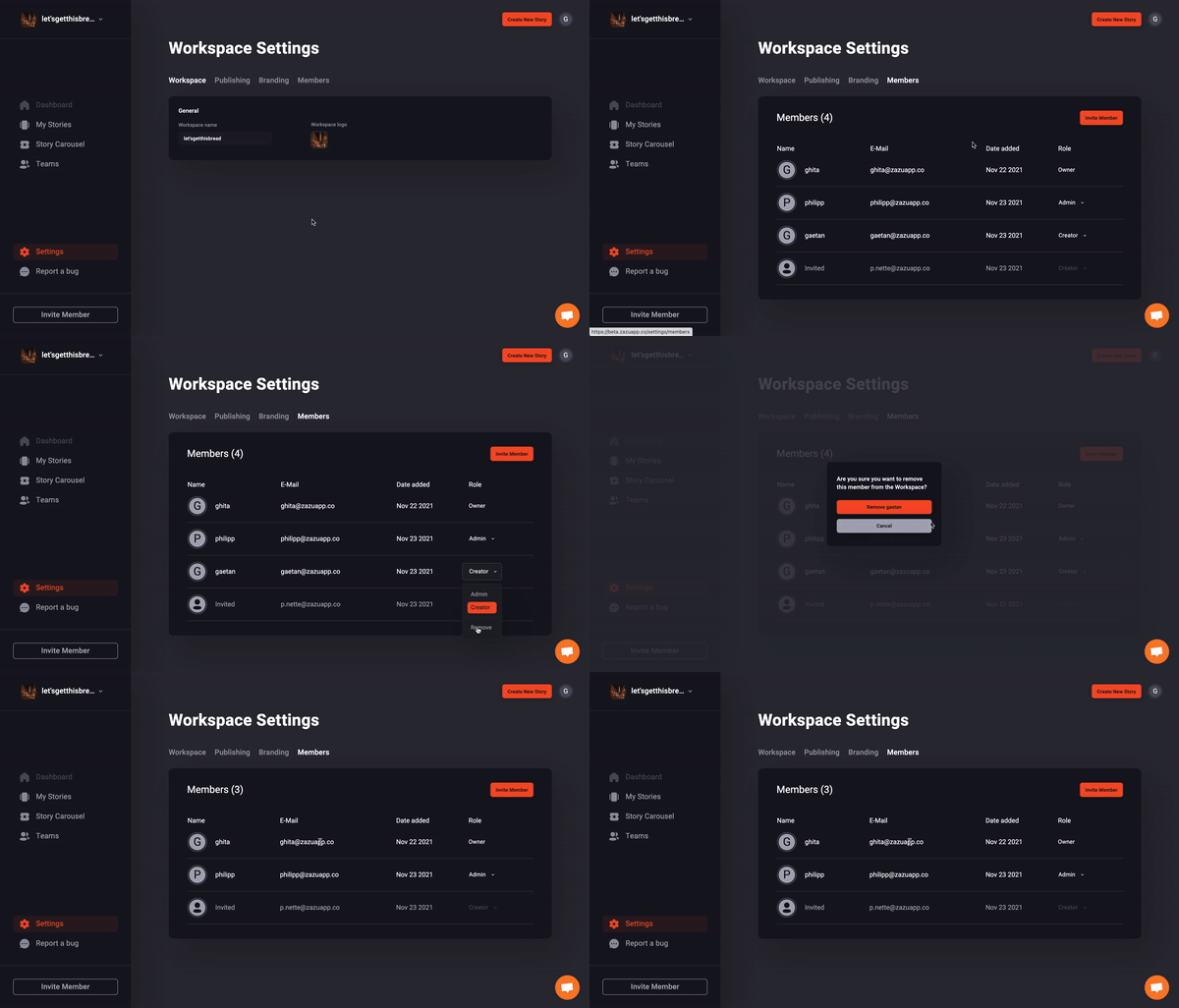
Removing members from your Workspace can be done like this:
- Under Settings, click on Members
- Select Role next to the member you want to remove
- Select Remove