Create and use templates
Follow this easy guide to learn how you can create and use templates that stand out!
You can create your first Story following the steps in this article . You can then save your Story artboards as a template set in order to use it later.
- You can save your Story artboards as a template by clicking on the menu icon in the top left corner and then by clicking "Save as template"
- Select the artboards you want to be included in the template - a template can include a set of artboards or only a single artboard. Have a look at the GIF the see how it works:
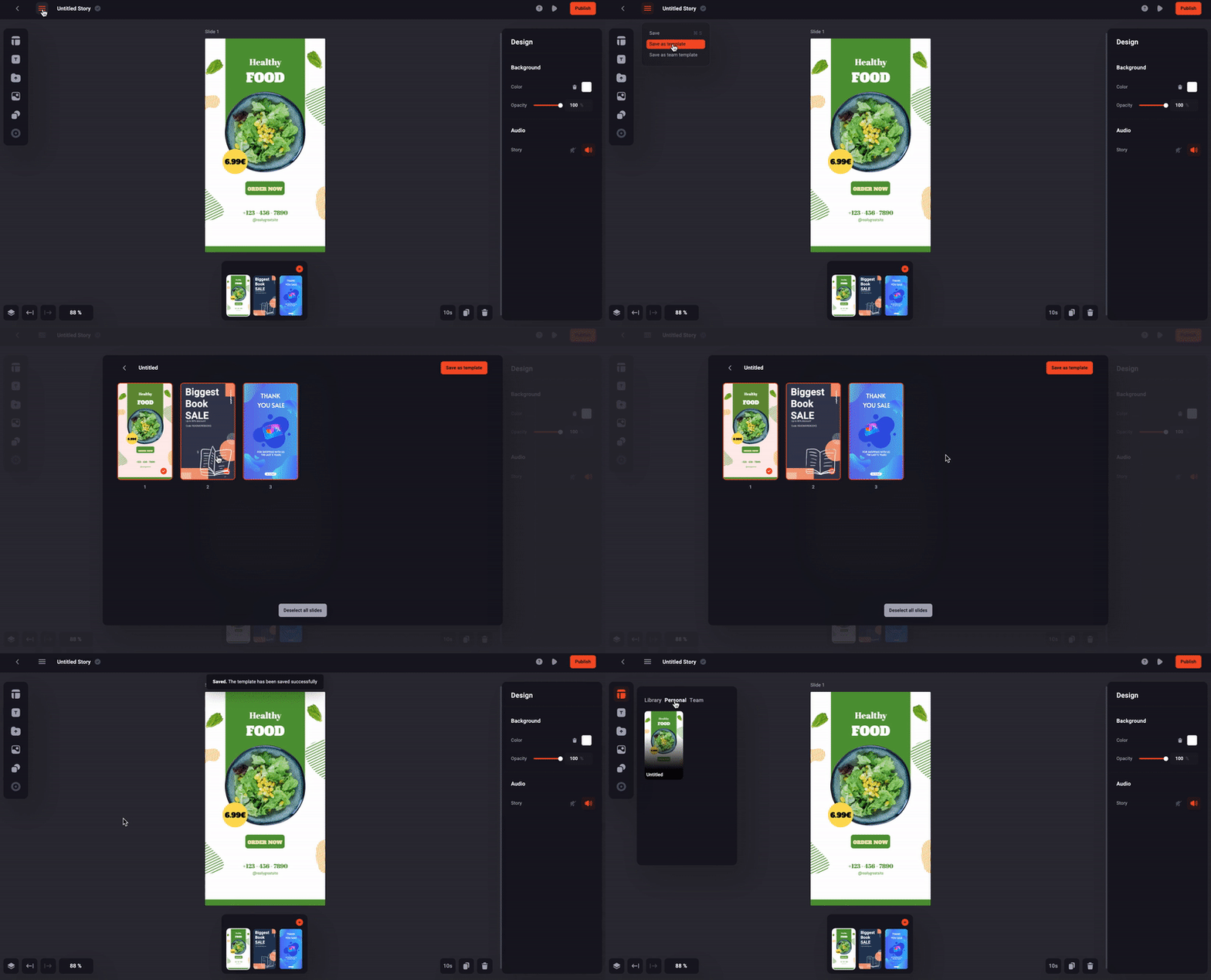
And TA-DA the template set is now saved under your personal templates that can be accessed by clicking on the templates icon! You can select a template and will see all artboards of the template set. You have the option to select the artboards of a set you want to apply as a template:
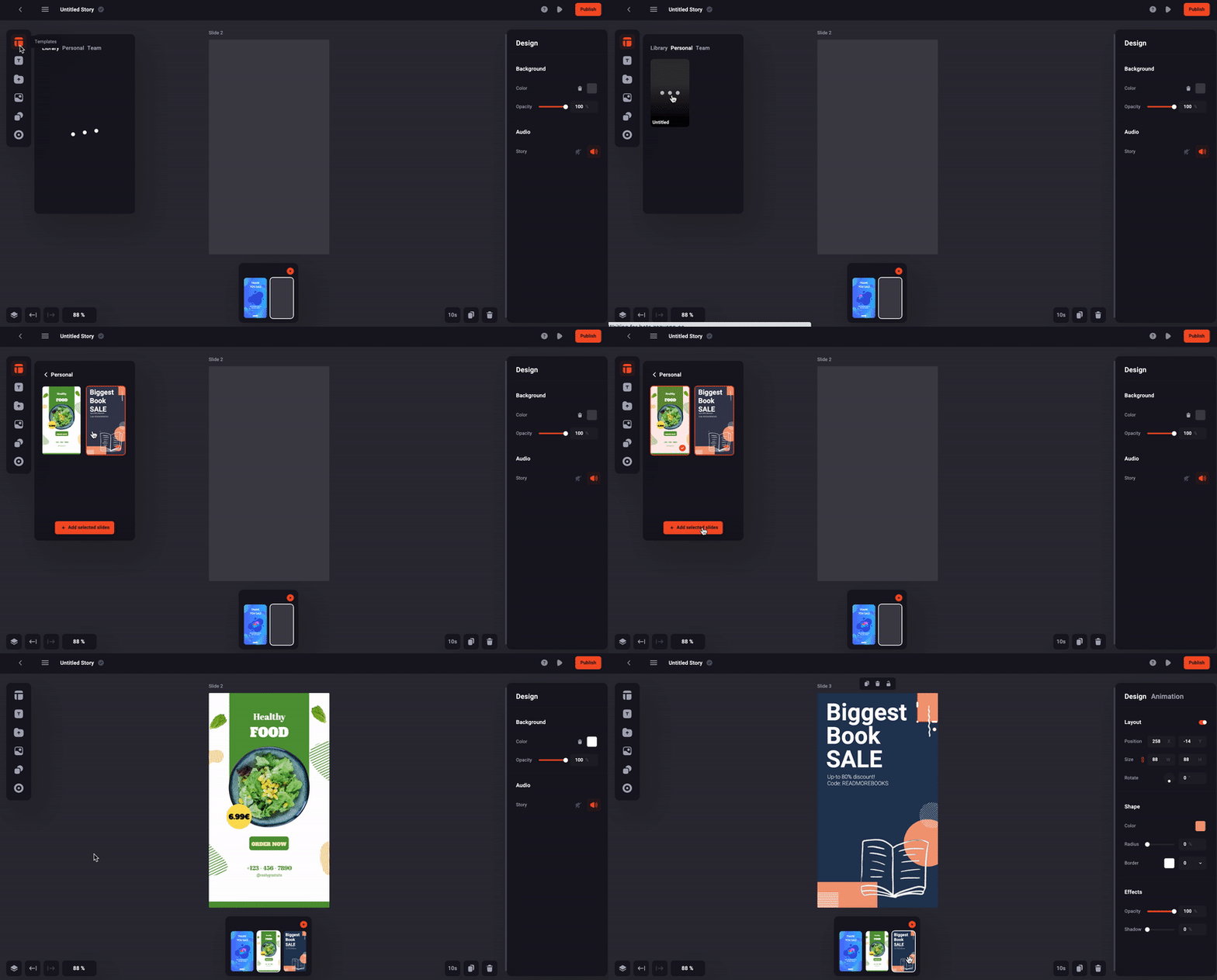
💡Tip: You can also delete and name templates in order to stay organized!
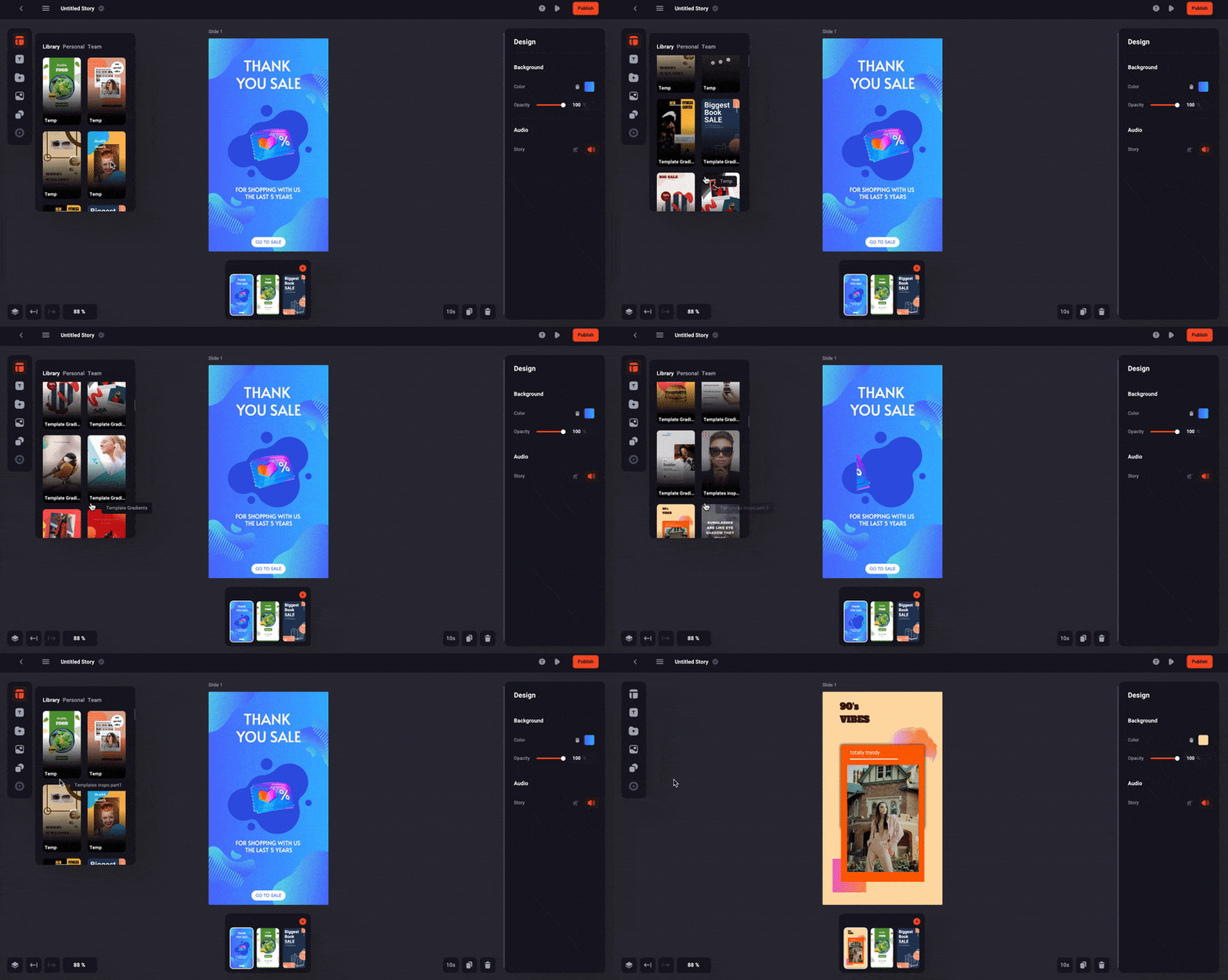
Find inspirations for templates by searching through Slidy's library:
You could also save some time and work collectively on templates by sharing them within the company's Teams Workspace. Which means all team members will have access to the templates you share with them, and you will get to see the templates from your team members, too.