Workspace Setup
Use the first guide to get your workspace ready to start! ! If you follow the article step by step you will be ready to use Slidy properly.
Watch this video to see how the whole setup works:
Create your Slidy account
⚠️ Important! Account creation is currently disabled. Please reach out to gregor@slidy.io and we’ll be happy to help.
You can create your account on Slidy's main page . Follow these steps to get started:
- Enter your name, email address, and password in the sign-up window and submit the sign-up request
- Check your mailbox and click on the verify button
- You will be redirected to Slidy's login page and can access the tool with your email address and password
Set a Workspace name
First thing to do after setting up the account is to give your Workspace a meaningful name and logo. Go the Settings ( homepage left bottom corner) and your will find Workspace name and logo to be changed here.
Invite your Team
To collaborate with your entire team, you can invite new members by clicking Invite Member on the left bottom corner. Add as many emails as you like and read this article to learn more about how to invite new members or what the roles mean.
Set your SEO data
Add your general SEO information to have it linked as metadata to every published Story. Find more details in the Publisher Branding article.
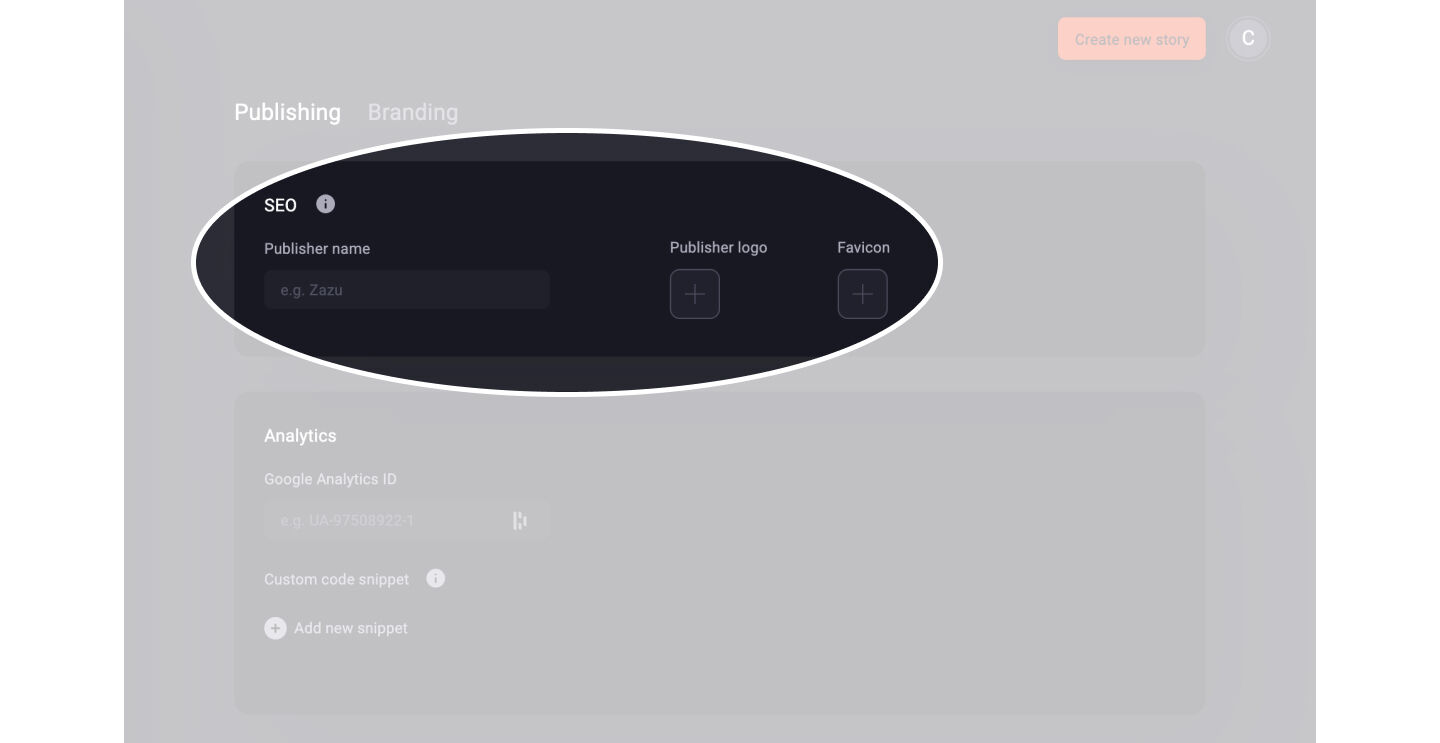
- Publisher Name: The Publisher Name is the name of the person or organization publishing the Web Stories online.
- Publisher logo: The Publisher Logo will appear in the results in Google Search. Make sure to upload a logo that represents the person or organization who is publishing the Web Stories.
- Favicon: The Favicon appears in the browser tab when someone watches your Web Story online.
Manage your brand assets
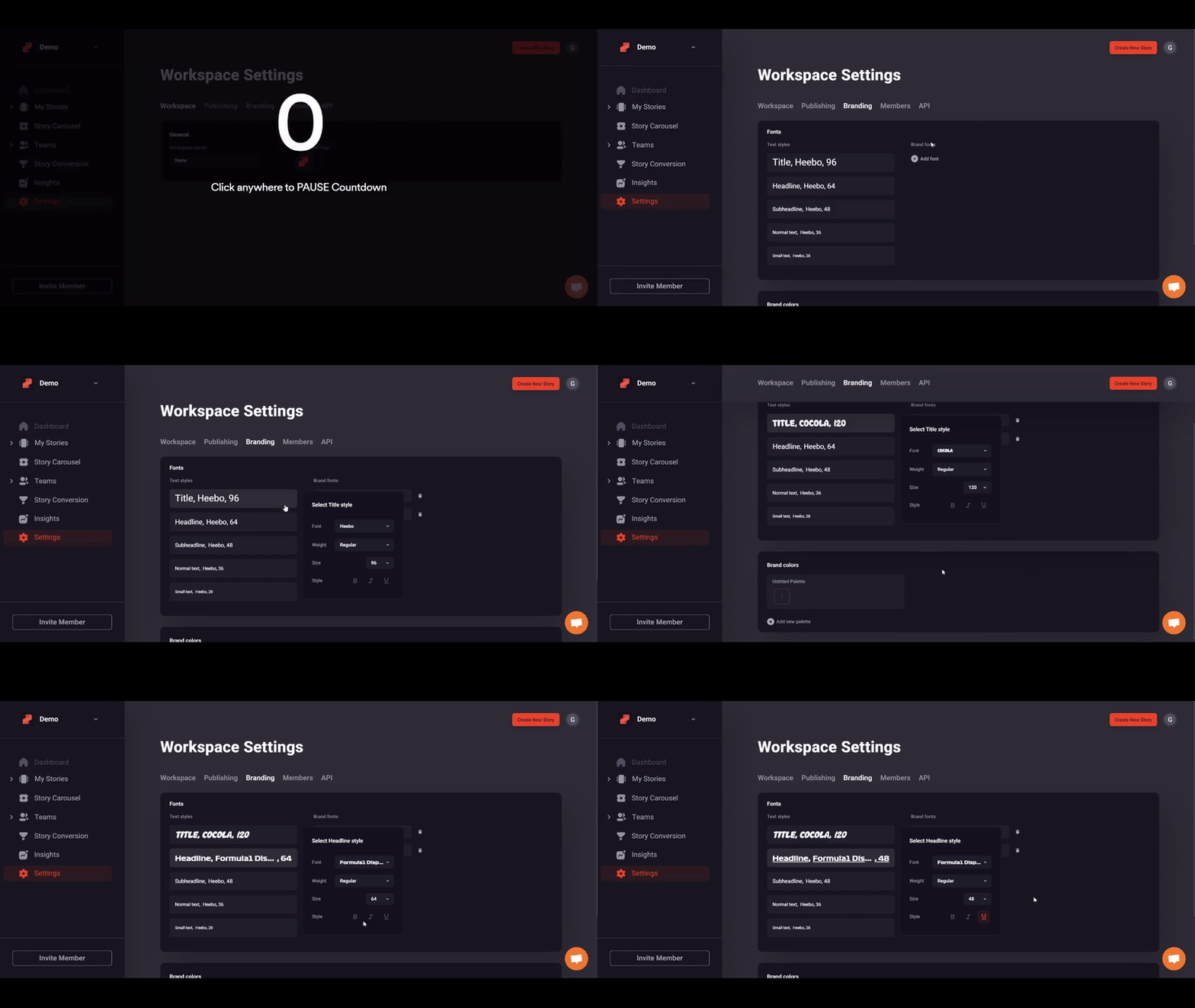
You can upload your company-specific fonts and colors to Slidy and have them listed in the Slidy editor for quicker access. You can find more details here on how to add brand fonts and colors or watch this GIF:
Enable your company's domain
Your Stories are hosted on Slidy's domain by default. You can make your Stories accessible from your own domain by following the steps of creating a custom domain .
💡 Tip: Hosting the Story on your domain can boost your SEO
Connect your analytics tool
You can use Slidy's In-app Insights to get some performance metrics right away. To analyze and report the performance of your Stories you can also use Google Analytics or any analytics tool.
- Enable Google Analytics
- Connect Google Analytics
- Connect any analytics tool with a custom code snippet: Custom code snippets allow you to add tracking snippets to the code of your Web Story.
⚠️ Careful: Your custom code snippet may cause issues in regard to the AMP validation of a Web Story.
Read the other intro articles to help your way around in Slidy: